Accountable publisher
Published under the RTX5 Editorial Team byline. It identifies the responsible publishing organization; it does not imply that a named lawyer, regulator, financial adviser, or licensed expert approved this page.
Platform basics
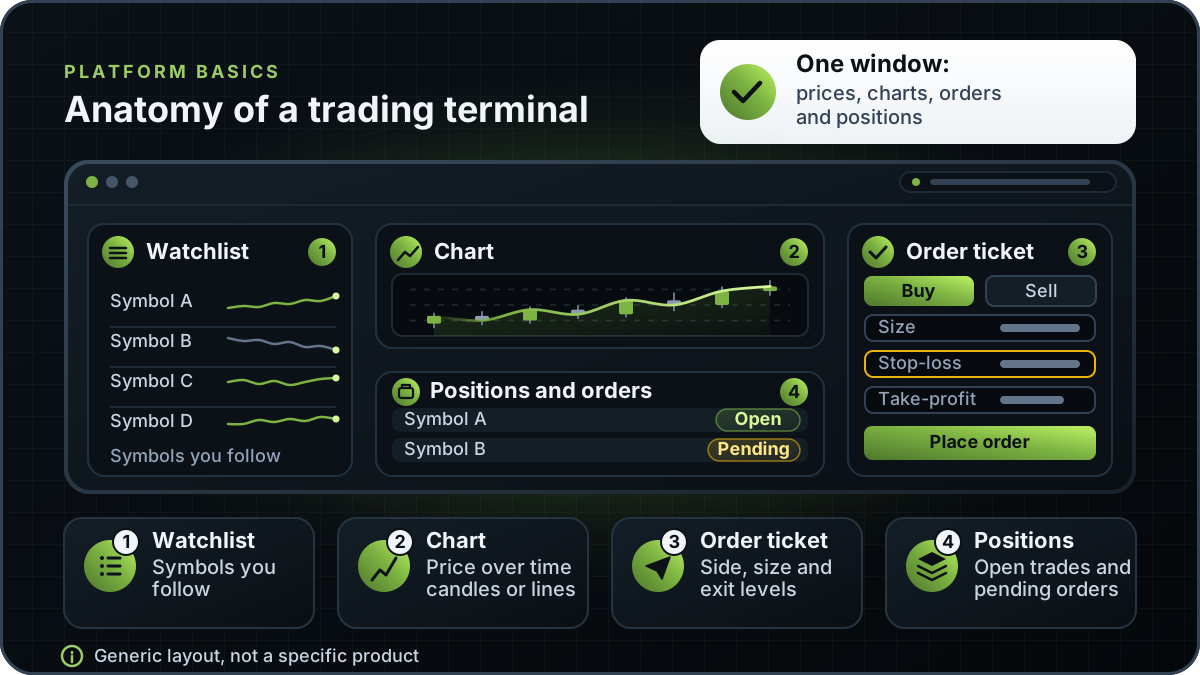
A trading terminal is software that connects to a broker or trading venue to show live quotes and charts, and to place, track and manage orders. Traders use it to watch markets, enter market and limit orders, monitor open positions and margin, and review past activity. The term describes a software category, not a single brand.
In brief
The software that shows you prices, charts and your account, and sends your orders to a broker, explained in plain terms.
A trading terminal sits between you and the market. It receives prices from a data feed, shows them in lists and charts, and sends your instructions to a broker or venue. It then reports back what happened: which orders filled, which positions you hold and how much margin they use. Most terminals present all of this in one window, although some spread it across several.
The category covers both trader-facing software and the internal tools that brokers use to run their business. A trading terminal is not a broker. Using one does not mean a broker has approved your trades or holds your money for you. New to markets? Start with what is trading before you choose software.
Vendors usually describe their terminal's features on their own product pages. RTX5 is one example: see the platform page.
This page describes the general software category. It is not about any product or company called The Trading Terminal.
Not every product includes all of the features below, and names differ between vendors. Check each one against what your broker or vendor actually supplies, rather than assuming it is present because it appears in a brochure.
Charting is covered in more depth on the charts page. The table summarises what each feature does and what to check before you depend on it.
| Feature | What it does | What to check |
|---|---|---|
| Watchlist and quotes | Lists instruments with bid, ask and last price, usually with the daily change. | Whether quotes are live or delayed, and which data package your account includes. |
| Charts | Plots price over time in several timeframes, with drawing tools and indicators. | Available timeframes and chart types, and whether indicators are built in or added separately. |
| Order ticket and order types | Lets you enter an order with its side, size, price and type, such as market, limit or stop. | Which order types your venue accepts and what each one guarantees. See the order types section below. |
| Positions and orders | Shows open trades, pending orders, fills and profit or loss. | Whether you can modify or cancel an order, and how partial fills are displayed. |
| Account and margin view | Shows balance, equity, margin in use and free margin. | The currency of the account, how margin is calculated, and your broker's margin call rules. |
| Alerts | Notifies you when a price, indicator or order event reaches a condition you set. | Delivery channels such as pop-up, push or email, and whether alerts work when the software is closed. |
| History and reports | Records past orders, trades, deposits and withdrawals for review and record keeping. | Export formats, and how far back the history goes. |
| Automation and API | Runs scripts, bots or external programs that send orders through an interface. | Whether automation is permitted on your account, and how it is tested before live use. |
Feature names and availability vary by product. Treat this table as a checklist, not a specification.
The order ticket is where most mistakes happen, so it helps to know what each common order type guarantees. Investor.gov describes the three most common types as market orders, limit orders and stop-loss orders.
Other instructions, such as stop-limit orders and time-in-force settings like day or good-till-cancelled, depend on the venue. Confirm which ones your terminal and broker support before you rely on them. Once an order is submitted, its handling is covered on the order management page.
Several groups use trading terminals, and each one puts different weight on the features above.
The three labels overlap in practice. A charting tool can be part of a terminal, and some broker apps are full terminals. The table shows typical roles, not rigid categories.
| Tool | Main job | Places orders? | Typical limitation |
|---|---|---|---|
| Trading terminal | Market view, order entry and account management in one interface. | Yes, once connected to a broker or venue. | Feature depth varies, and the software must be connected and configured before it is useful. |
| Broker app | Simplified trading for the accounts and products of one broker. | Yes, usually only with that broker. | Fewer analysis, automation and multi-broker tools. |
| Charting tool | Price analysis with charts, drawings and indicators. | Usually not, unless it is linked to a broker. | Often has no account view or order routing of its own. |
These are generalisations. Products differ, so check the specific product's documentation.
Terminals come in three main forms. The right one depends on how you trade, and many traders use more than one.
Vendors often publish all three forms. As one example, the cTrader help centre lists separate cTrader Mobile, Web, Windows and Mac apps. Desktop-focused product pages, such as desktop trading, describe the category in more detail.
A demo account is a checklist, not a test of profitability. Use it to confirm that the software does what the vendor says, on your broker's data and under your account's settings.
Check which broker, venue or data feed the terminal connects to, and whether the connection is live or simulated.
Place a market, a limit and a stop order on a demo account. Record each fill price and compare it with the quote shown at the time.
Confirm the account currency, margin and equity. Calculate one simple position by hand and check that the terminal shows the same figures.
Set one alert, export one history report, and read the automation rules before you connect any script or bot.
RTX5 is Orrnn's trading terminal and broker-technology product. Its Windows desktop client is in preview, and the web and mobile clients are planned. A Google Play listing for Android is published, but the mobile client has no approved release record yet; check the product-availability record and release notes before relying on any RTX5 feature.
Check RTX5 product availabilityTrust and methodology
We want you to be able to identify who owns the page, inspect the evidence, understand how tools were used, and challenge anything that looks wrong or out of date.
Published under the RTX5 Editorial Team byline. It identifies the responsible publishing organization; it does not imply that a named lawyer, regulator, financial adviser, or licensed expert approved this page.
4 primary references are listed on this page with context about what each one supports. The source set was checked on .
Automation and AI may help organize research, outline a page, or edit language. They are not treated as sources, are not presented as human experts, and do not remove the publisher's responsibility for the final page.
If a statement is incomplete, unsupported, or outdated, send the exact URL, sentence, and supporting evidence through our contact route. Read the full editorial and corrections policy.
Sources were checked on 7 November 2026. They explain market rules and concepts; they do not certify RTX5 or provide individual financial advice.
Not always. A trading terminal is a category of software. Some brokers supply their own terminal, which can also be a broker app. Independent terminals can connect to one or more brokers that support them. Check whether the terminal you are considering connects to your broker before you open an account or rely on its order handling.
No, not in every case. Many brokers offer a web or mobile interface that handles quotes, charts and orders without separate software. A terminal becomes more useful when you want to watch several markets, run detailed analysis or connect automation. Whatever you use, you still need an account, and you need to understand the orders and risks involved.
Some can. Many terminals support scripts, bots or an application programming interface. For example, MetaTrader 5 runs trading robots from its Navigator, and cTrader lists cBots and an Open API. Whether automation is allowed on your account depends on your broker, so test any automated system on a demo account first.
A charting tool focuses on price analysis: charts, drawings and indicators. A trading terminal also manages the connection to a broker, so it can send orders, show positions and display the account's margin. Some products combine both in one window. Check whether a tool can place orders before you assume it can.
Test each order type you plan to use, including a market order, a limit order and a stop order. Record the fill prices and compare them with the quotes shown. Confirm how margin and equity change when a position opens. Set one alert and export one history report. A demo account shows how the software behaves, not how you would trade live.